Do you want your online shop to bring in money every month? Subscriptions make this possible. With the WooCommerce subscriptions plugin, you can take recurring payments from your customers. This is better than waiting for random sales.
Still, managing subscriptions is not always easy. You must check renewals and handle cancellations. You have to keep customer data up to date, too. WooCommerce works for one-time sales, but not for subscriptions natively. If you want to add subscriptions, you need extra plugins.
WPSubscription is a helpful plugin for this job. It lets you sell digital products, physical goods, or services as subscriptions. It sets up automatic payments for you. You do not have to do extra work. You can also use Bit Flows with WPSubscription.
Bit Flows is a simple tool that connects WPSubscription to other services. For example, you can send customer info to your CRM. You can also send reminders or messages on WhatsApp or Telegram. You do not need to know any code to use these features.
One-Time Payment vs Subscription Payment
A one-time payment is easy to understand. Your customer pays once, and that’s it. For example, buying a t-shirt or an eBook is a one-time action. No more charges after that.
A subscription works differently. Your customer pays again and again. This can be each week, month, or year. For example, selling a course for one price is a single payment. But giving new lessons every month for a fee is a subscription.
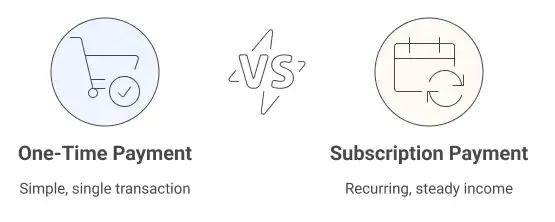
Subscriptions are good for a steady income. They help you earn more from each customer. This is because people stay with you longer. WooCommerce by itself cannot do recurring payments.
You need a plugin for this. WPSubscription is made for this job. It can give free trials and help with renewals, too. You can turn any product into a subscription with it.
How to Build a WooCommerce Subscription Platform
To get started, install a subscription plugin for WooCommerce. WPSubscription is popular and easy to use. With it, you can set up plans for your products. Maybe you want to offer a monthly newsletter or a yearly design pack.
WPSubscription does the work for you. Billing is automatic. You and your customers can use dashboards to see and manage subscriptions. You can set how often people pay, offer trials, and even charge signup fees.
WPSubscription Plugin Overview
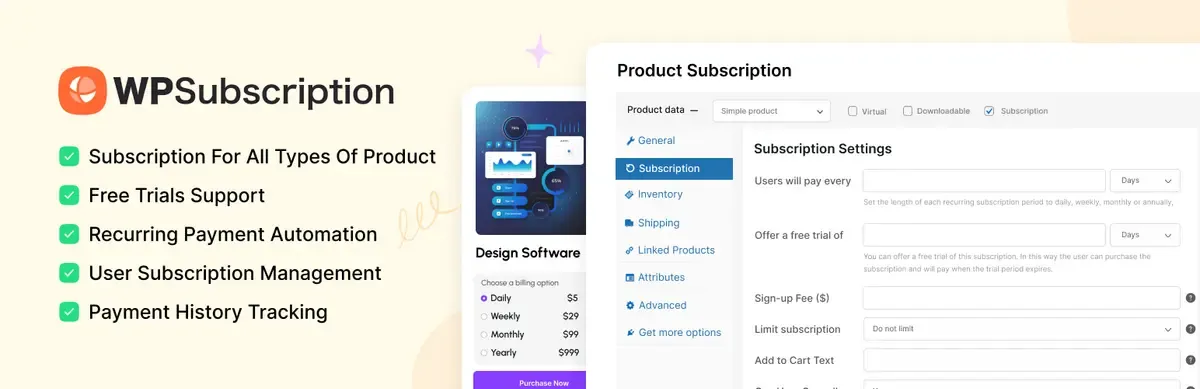
WPSubscription brings many features to WooCommerce. You do not need coding knowledge. You can customize the payment schedule and charge daily, weekly, monthly, or yearly.
You can also offer a free trial or ask for a signup fee. WPSubscription works with various payment methods. This includes Stripe, PayPal, and Paddle. Customers will pay in the way they trust.
The plugin manages renewals and shows you all active and expired plans. You can check payment records anytime.
Customers can pause, cancel, or change how they pay, all by themselves. WPSubscription gives you tools to focus on your business and not on tracking payments.
Key Features of WPSubscription
Use Any Product as a Subscription: Turn any product in your shop into a subscription. It works for both simple products and those with variations. No need to play with any complex thing. Just choose the plan and payment schedule.
- Flexible Billing Cycles: Pick how often to charge your customers. It can be every day, week, month, year, or something else.
- Free Trials and Signup Fees: Want more people to try your offer? Give a free trial. Or, start with a small signup fee to cover your first costs.
- Customer Self-Service Dashboard: Subscribers get their own account page. They can see their plan, pause or cancel, and change payment info. This means less work for your support team.
- Admin Dashboard Control: You can see all subscriptions in one place. Track every payment. Change plans or cancel subscriptions as needed.
- Payment Gateway Choices: Customers pay with Stripe, PayPal, or Paddle. All renewals happen safely and on time.
- Pay in Installments: Let people pay in smaller amounts for bigger products. For example, pay over four weeks instead of once.
- Easy Upgrades and Downgrades: Customers can move to another plan without losing their subscription. This helps them stay happy and with you.
How to Add a Subscription Product in WooCommerce
Once you have WPSubscription, adding a product with a subscription is easy. Here are easy steps:
Step 01: Install WPSubscription: Go to Plugins in your WordPress dashboard. Click Add New.
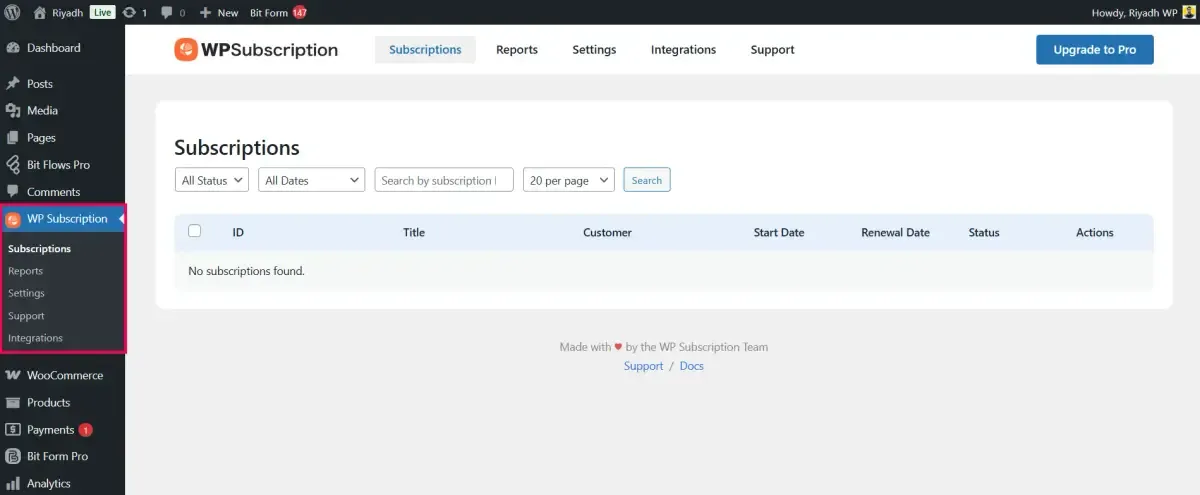
Search for “WPSubscription” or upload the file. And then activate it. After activation, you will see the WPSubscription menu on your WordPress dashboard.
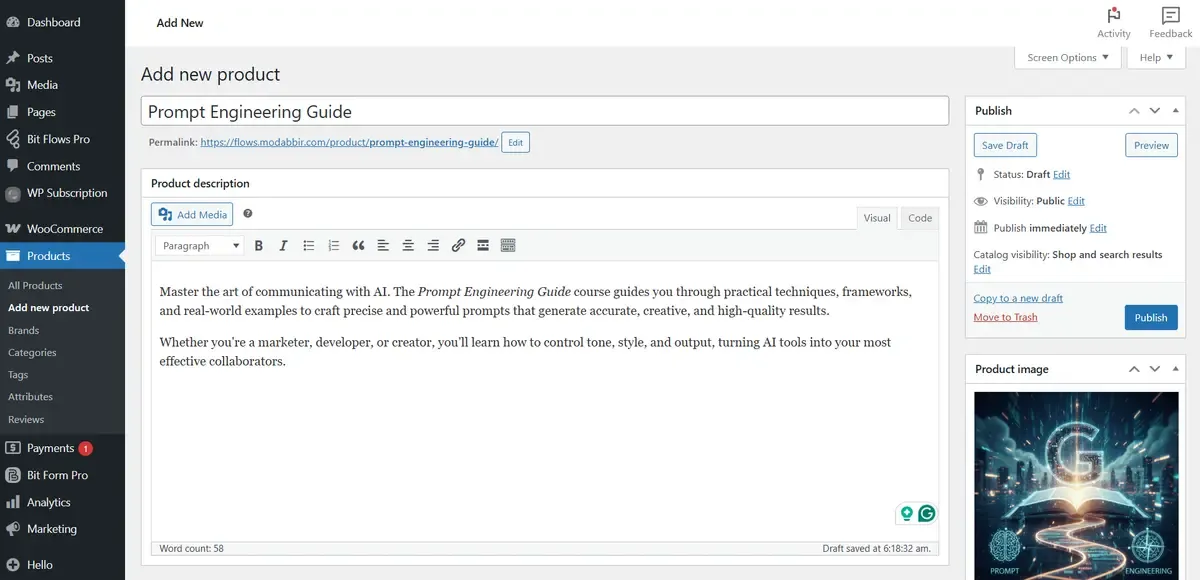
Step 02: Add a Product: Click Products, then “Add New Product”. Write your product’s title, description, add images, and all the necessary things.
Step 03: Choose Product Type: In Product Data, select “Subscription.” This will be there if WPSubscription is active. And then from the General tab, set the pricing.
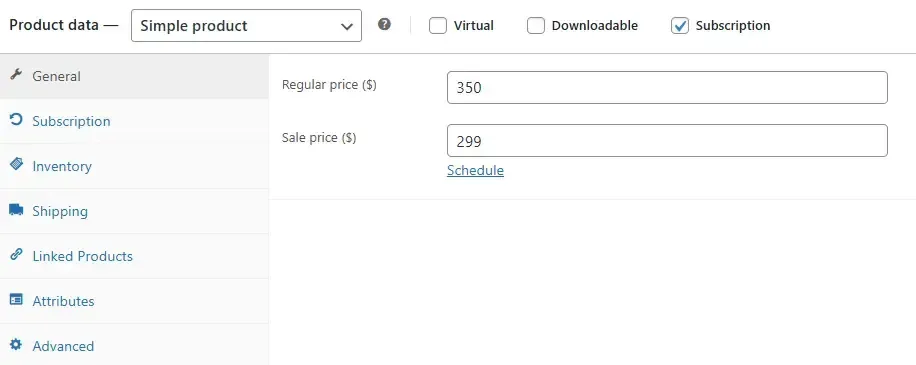
Step 04: Set Subscription Terms: Now, click on the subscription tab, write the price and billing schedule. You can offer trials or add a signup fee. Here I want to charge monthly for a new lesson and give a 7-day free trial. Here is my setup:
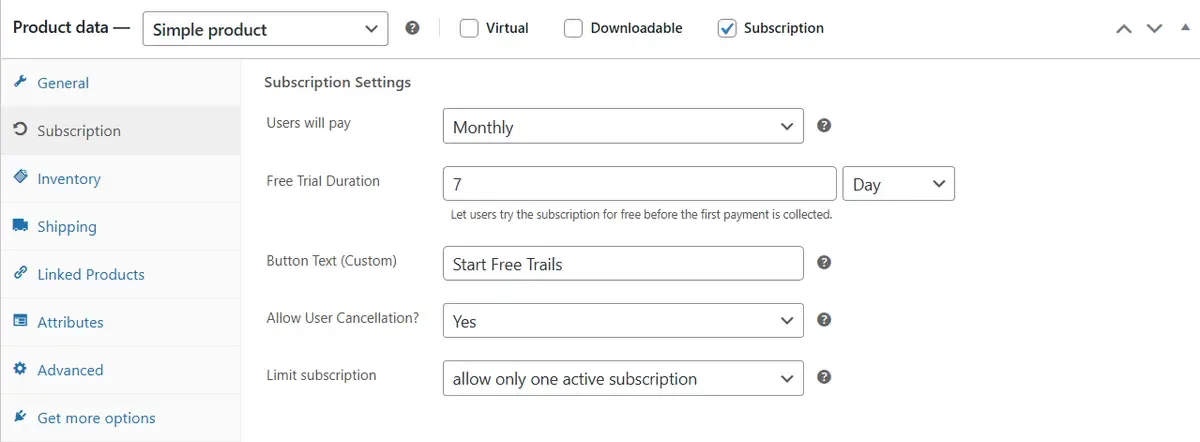
Step 05: Publish: Click publish. Your product now has a trial/subscription option.

WPSubscription adds new fields to set up subscription info on products. You can set prices, schedules, trials, and fees for every product. If you need more, use the pro version for even more product options.
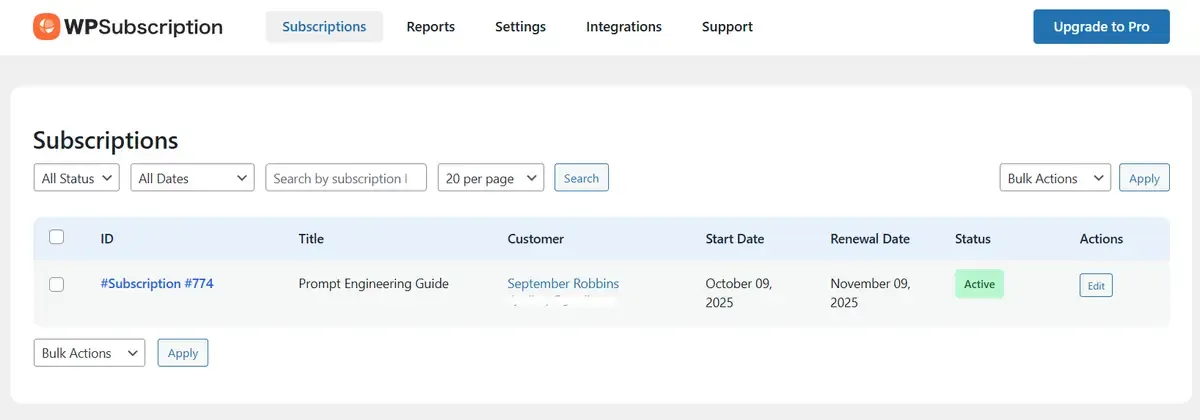
You will see the subscriber and the plan details under the WPSubscription menu.
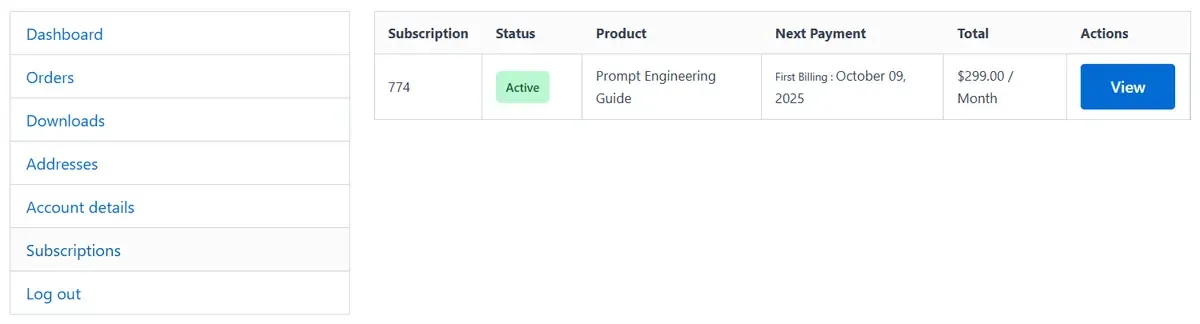
Also, customer will see their subscription from the my account page. They will see the renewal date and subscription information.
How to Automate WooCommerce Subscription Management with Bit Flows
If you run a subscription site, you want good records and easy ways to talk with your customers. Automation can help a lot. Although WPSubscription has native email notification functionalities for necessary tasks like Status Changed (Admin), Subscription Expired, Subscription Cancelled, and Renewal Reminder.
You can extend its power and send data to hundreds of platforms, connect AI tools, CRM, and email marketing tools, and more with Bit Flows.
It runs on your own website and keeps things working smoothly behind the scenes.Bit Flows also has the following WPSubscription events (Subscription Activated, Subscription Cancelled, Subscription Status Changed, Subscription Expired).
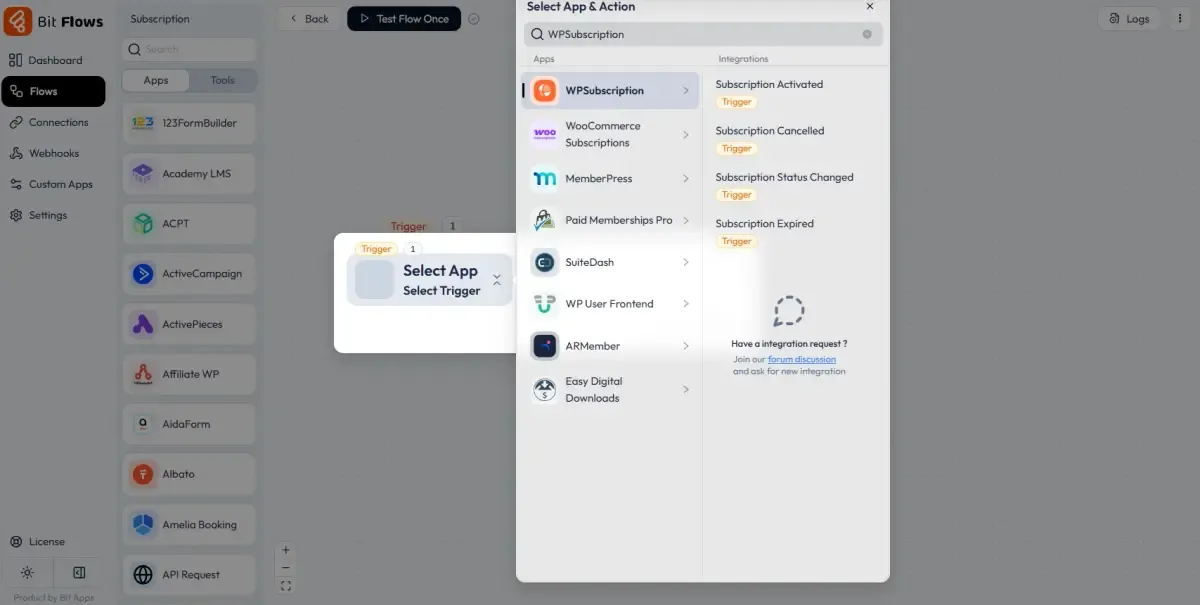
You decide what should start an automated process. For example, “Subscription Activated” can begin a workflow. You can send subscriber data to your CRM, message on Telegram, fill out Google Sheets, or add to your mailing list.
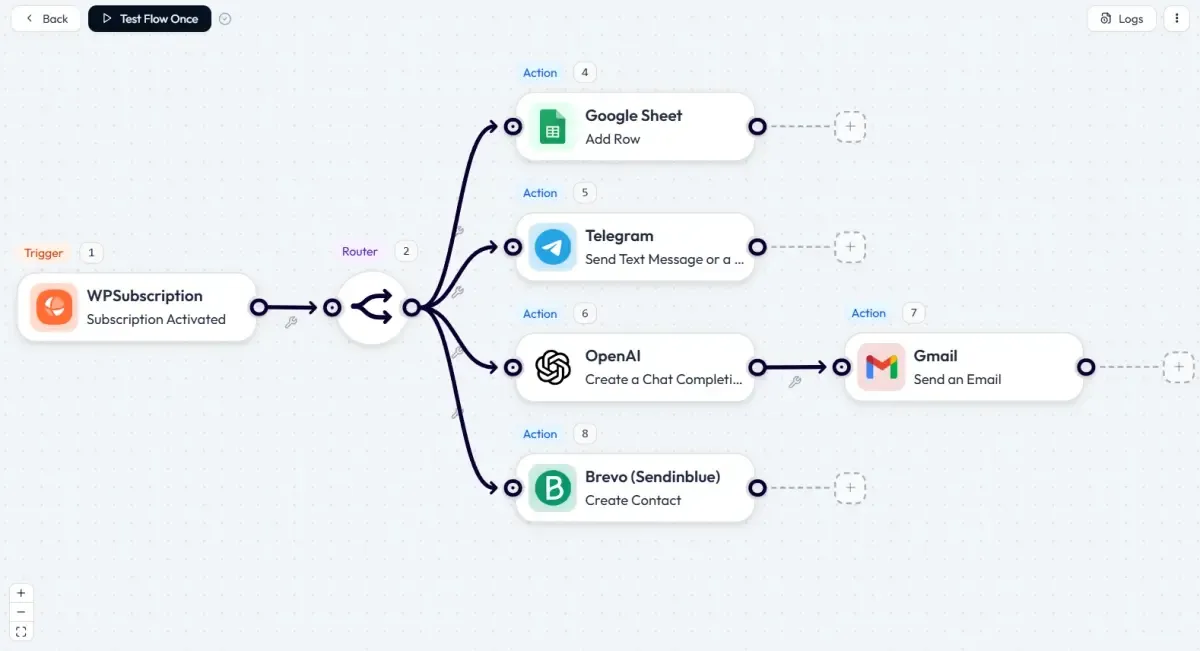
Bit Flows can use AI for special tasks, like writing messages or sorting data. You get lots of integrations: Google Sheets, HubSpot, Mailchimp, Slack, WhatsApp, and more.
This makes it possible to send reminders, sync data, and keep in touch with customers without any headache.
Key Features of Bit Flows
- Easy Workflow Builder: Drag and drop canvas builder to build what you want. Set a trigger, then choose tools and actions.
- No Limits: Build as many workflows as you need for your platform. No limits on workflows or tasks.
- AI Tools Included: Link with tools like OpenAI, Claude, Perplexity, Deepseek, and Gemini to make better personalized responses or check data.
- Connect Many Apps: It works with over 210+ apps and services, including Google Sheets, HubSpot, and Slack.
- WPSubscription Event Triggers: Bit Flows notices changes in subscriptions, like starting, ending, cancelling, or changing plans. Pick what actions should happen for each event.
- Logic and Control Tools: Set up conditions, delays, or special paths for smarter automation.
- Easy to Understand Logs: See every step in your workflows. Fix problems fast.
- Data Is Safe: Bit Flows is a self-hosted platform. So your data stays on your server. It’s safer and secure compared to cloud-based services like Zapier.
Step-by-Step Guide: Let’s Build the Workflows with Bit Flows
Step 01: Activate Bit Flows & Create Flow
To install Bit Flows, navigate to the WordPress admin panel, Plugins> Add New. And search for Bit Flows. Once you find it, install and activate it.
Then you will see a Bit Flows menu on your WordPress dashboard. Click on the Flows and hit the “+ Create Flow”.
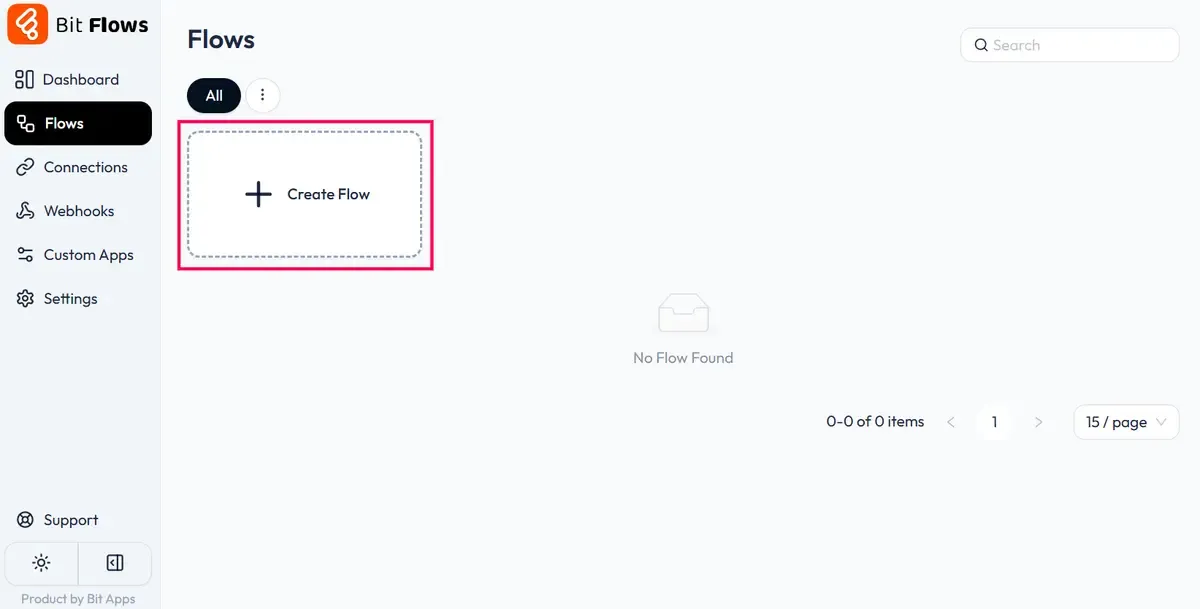
Give your flow a meaningful name and select the blank template.
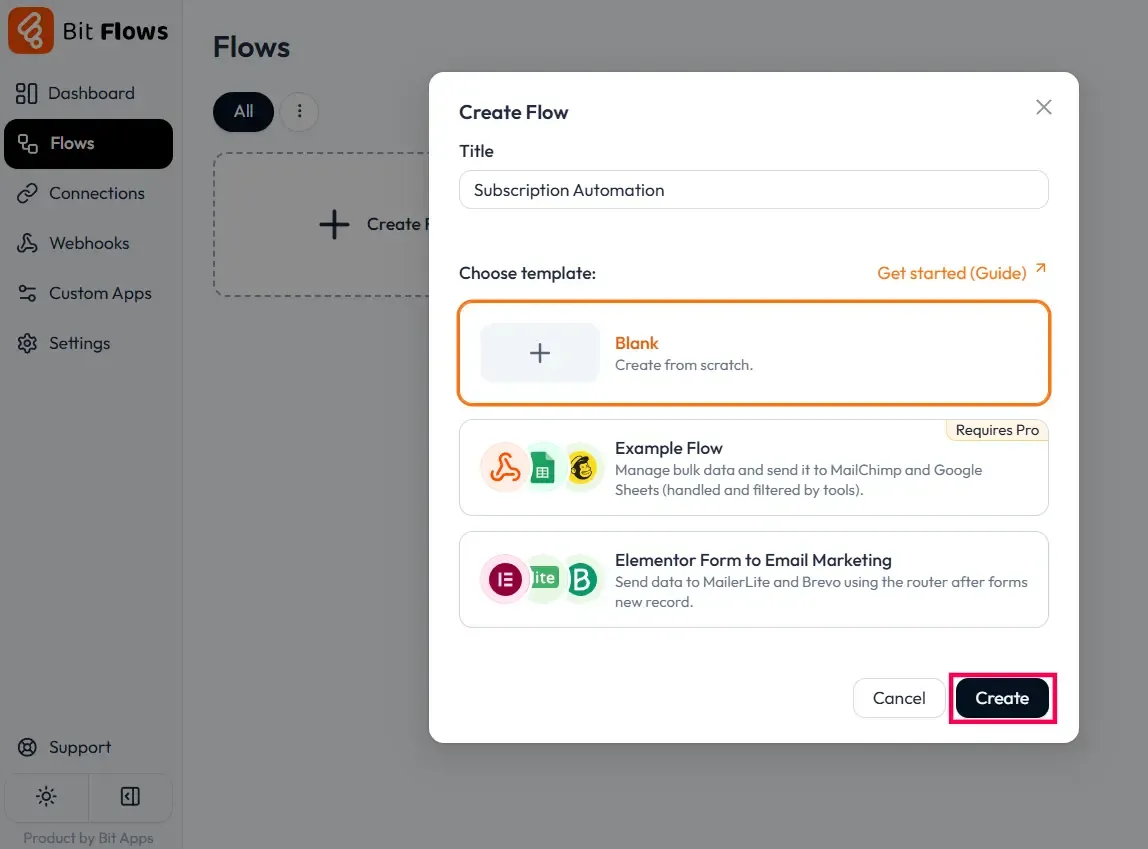
Step 02: Add TriggerAfter clicking on the “Create” button, you will see the amazing Bit Flows builder. This is the place where you can connect apps and play with automation.
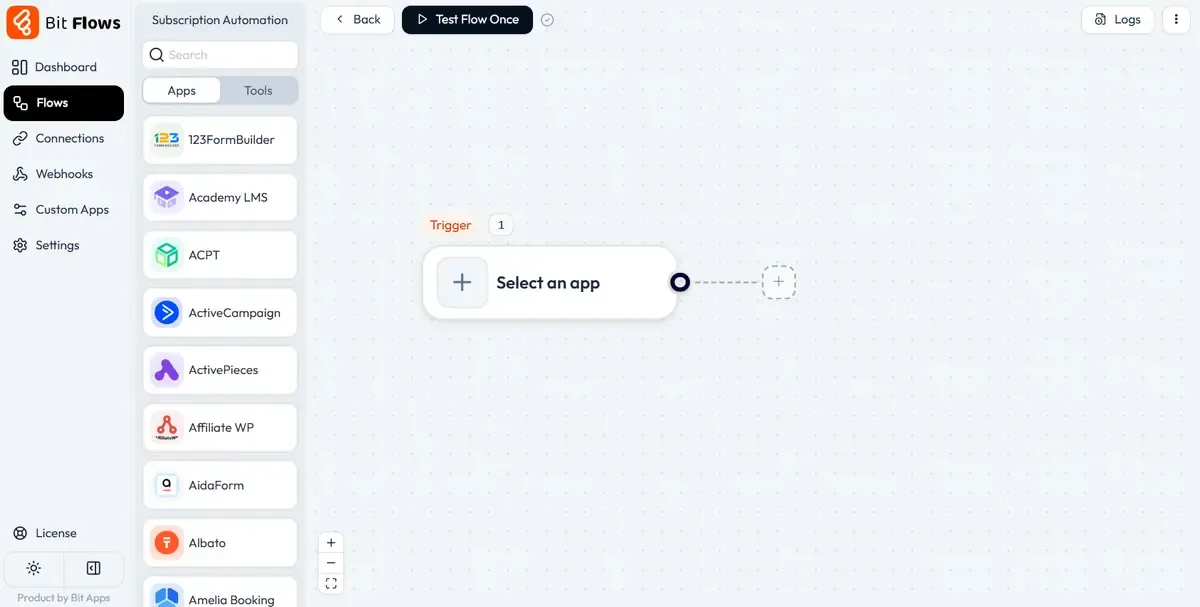
Now you need to add the WPSubscription Trigger. To add a trigger, click on**“Select an app”** and search for WPSubscription. Choose the event “Subscription Activated”.
After selecting the event, you will see a pop-up with a button named “Listen Response”. Click on the button and purchase a test subscription. And make sure the subscription is activated. This test purchase helps to catch data for field mapping.
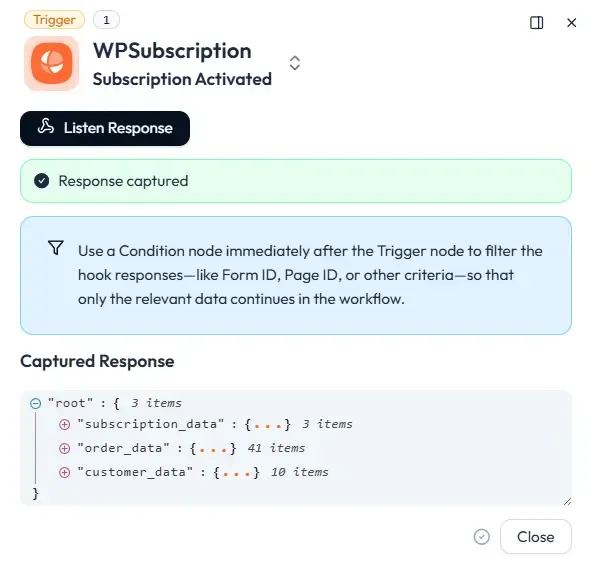
Step 03: Add Tools 7 Actions
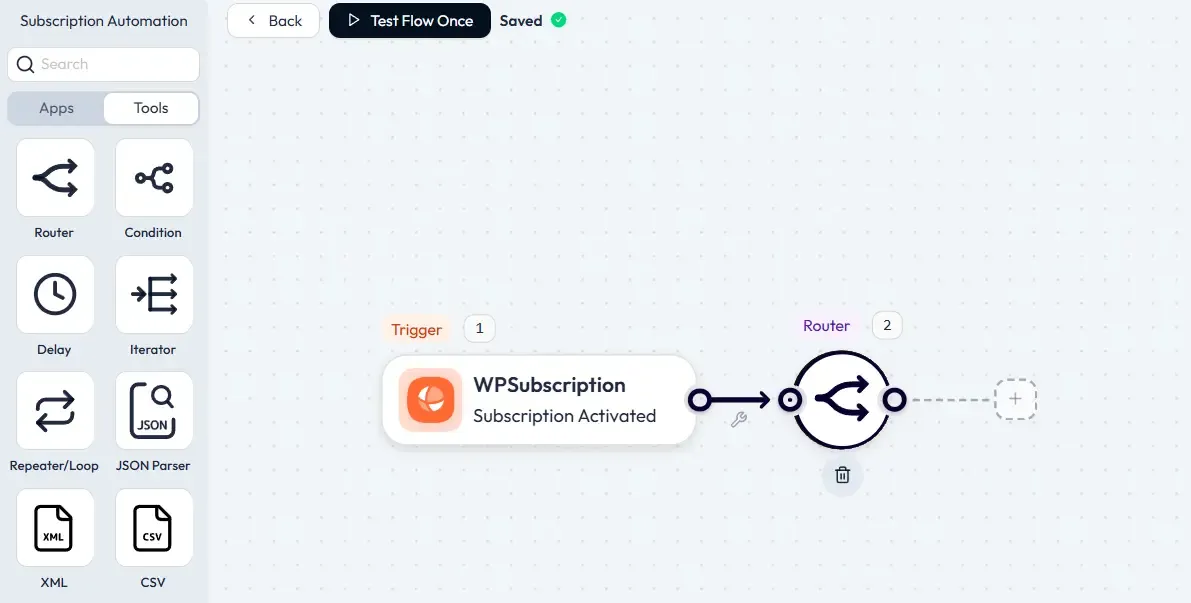
Now, add the router tools to create paths for adding multiple tools. A router helps you to split the path as many times as you need.
For example, by adding the router, we can add Google Sheets, Telegram, ChatGPT, and more.To add the router, navigate to the “Tools” tab, and drag and drop the router tool on your Bit Flows builder. Connect it after the WPSubscription trigger.
Now, it’s time to add actions. Let’s add Google Sheets first. To add Google Sheets, click on the + icon after the router and select Google Sheets.
Connect it with Bit Flows by using Client ID and Client Secret. After connecting, you will see all of your sheets on Bit Flows.
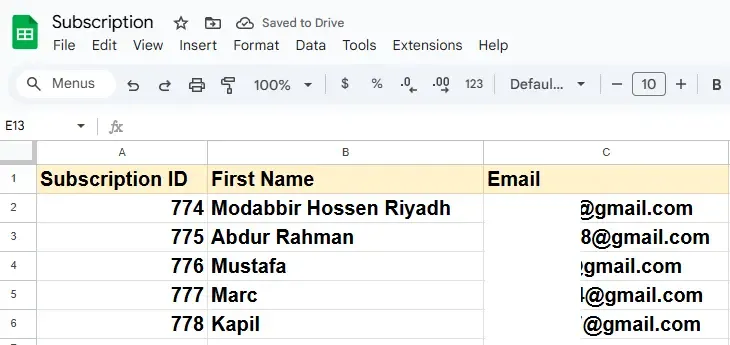
Here, I have connected my sheet and mapped the data from WPSubscription. You can map all the fields that you need.
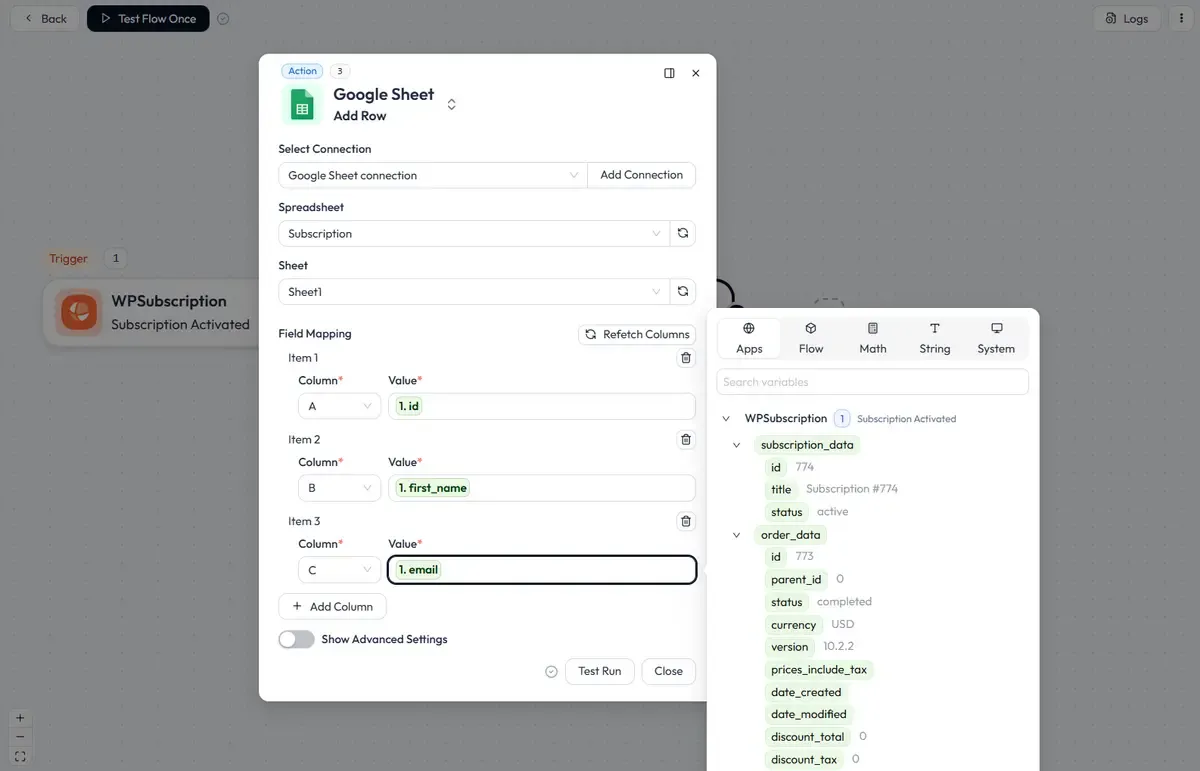
After connecting Google Sheets, do some tests. Here is my output after doing some test subscriptions. You can map as many fields as you need for better data organization.
Now add more tools as per your needs. Here I have added ChatGPT, Telegram, and Brevo. I would like to send a personalized onboarding message written by ChatGPT and send it to Gmail.
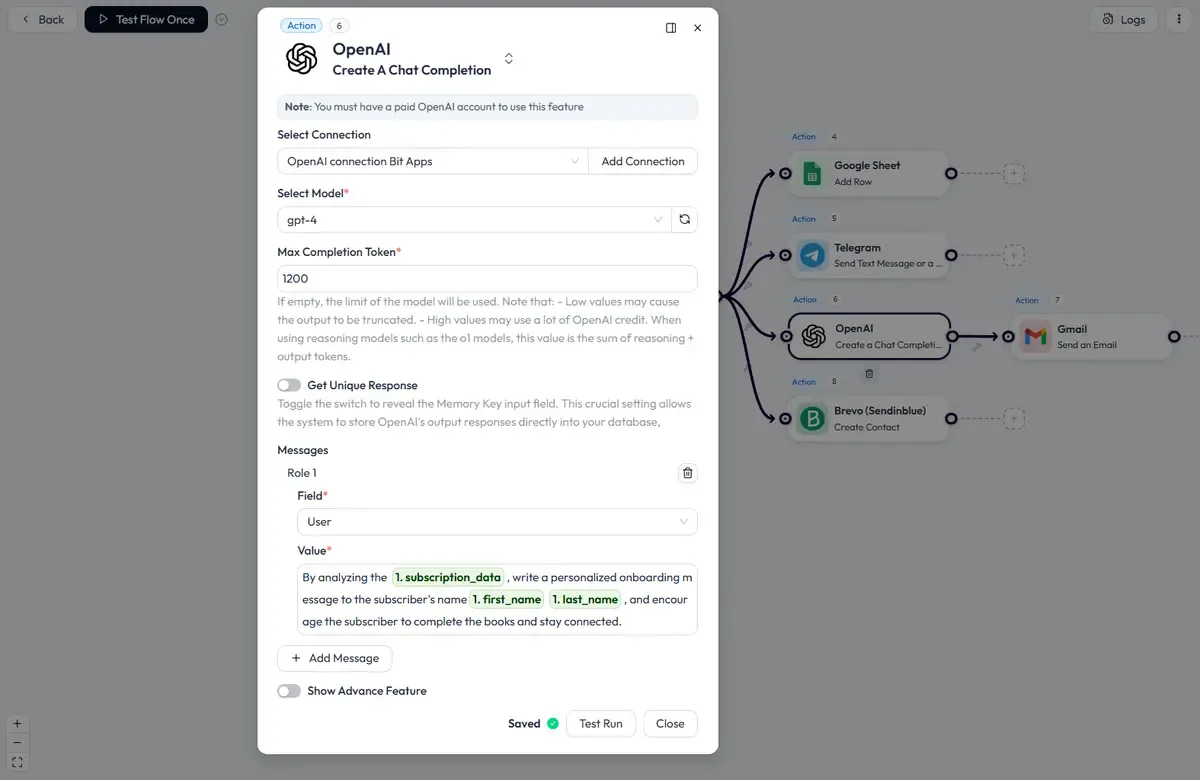
This will send the user a personalized onboarding email written by ChatGPT. You can map the subscriber mail on the Gmail node.
Note: You need to connect each action with your own credentials. For example, to connect ChatGPT, you need to add the OpenAI API keys and connect it with Bit Flows. Follow Bit Flows documentation for further assistance.
Example Workflows for Subscription Events
Bit Flows lets you automate important subscription tasks. Here are some ideas:
When Subscription Starts: Add the customer to your CRM and Google Sheets. Send a personalized welcome email written by AI. Notify your team on WhatsApp or Telegram.
When Subscription Expires: Email or message the person to ask them to come back. Keep a record of when the plan ended. Use a win-back campaign if you want.
When Subscription is Cancelled: Send a survey to learn why they leave. Update your CRM. Let your support team know so they can help.
When Status Changes: Update records any time a plan is changed. Notify your team by email or chat.
You can make your own combinations to fit your needs. Bit Flows makes workflows that link your shop with the apps you want.
What You Can Do with WPSubscription (Use Cases)
WPSubscription fits many business types online. Here are some ideas:
- Sell Digital Products: Give access to software, eBooks, or digital files for a monthly fee.
- Membership Access: Make members-only sections for articles, videos, or group chats. Good for online teaching or hobby sites.
- Online Courses: Give students new lessons each month. Use subscriptions for payment.
- Recurring Donations: For charities or nonprofits, use subscriptions for monthly support from donors.
- Ongoing Services: Sell web hosting, tech support, or other regular help as a subscription.
- Any Recurring Product: If your customer buys again and again, WPSubscription works for you. The pro version gives more choices, like sizes or delivery schedules.
If your customers want your product many times, WPSubscription helps track all the payments. It supports digital stuff, regular products, services, and memberships. Lots of store owners trust it for their business.
Conclusion
Subscriptions and automation make your WooCommerce store better for you and your customers. WPSubscription helps you get paid, again and again, without extra trouble. Bit Flows manages your emails, customer records, and more.
You end up with a more regular income and less work by hand. Use WPSubscription for your store. Connect with Bit Flows. Your customers will be happy. Your business will run smoothly. And you will have more time to grow your shop.