You know what? We've been getting emails about this for months now. People kept asking, "When are you guys adding a timeline feature?" And honestly, we heard you loud and clear.
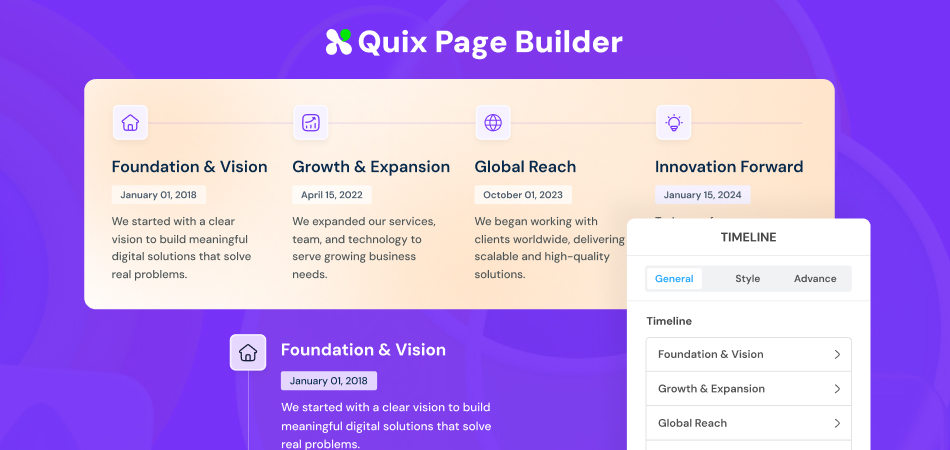
So here we are. The Timeline element is finally here in Quix Page Builder, and I'm pretty excited to show you what we built.
Look, I get it. Sometimes you need to tell a story. Maybe it's how your business started in someone's garage and grew into what it is today. Or maybe you're documenting a project that took three years and went through a million changes.
Whatever it is, stories need structure. And timelines? They're perfect for that.
Here's the thing, though - we didn't want to make just another timeline tool. There are already plenty of those out there.
We wanted something that felt natural to use, looked good without much effort, and gave you enough control to make it truly yours.
So What Can You Actually Do With It?
Alright, let's talk features. But I promise not to bore you with a giant feature list.
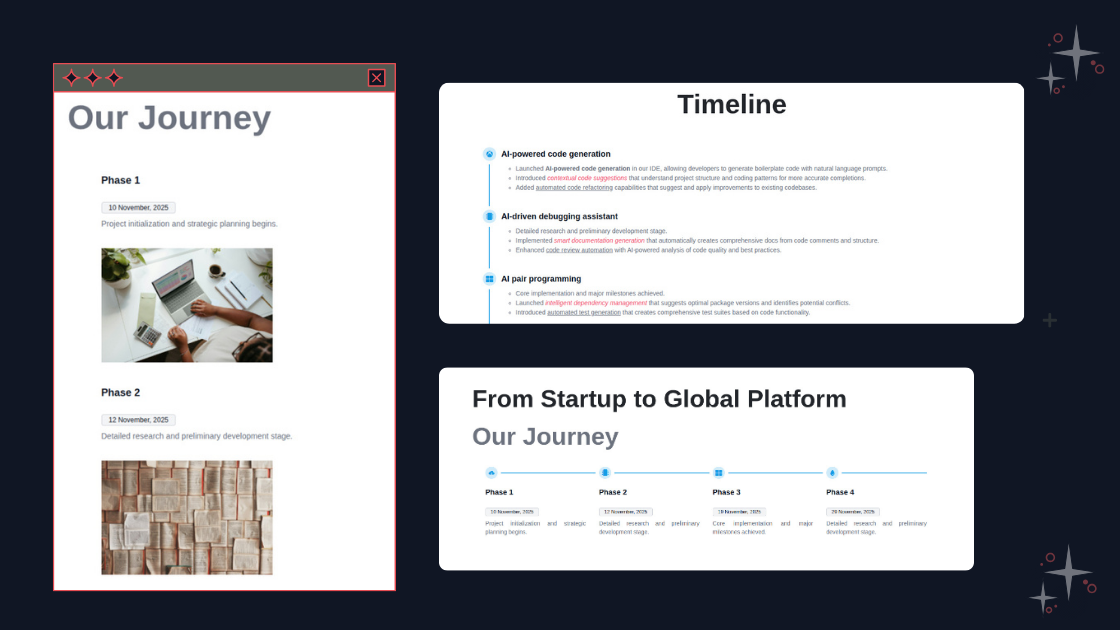
Each timeline point (or milestone, or whatever you want to call it) can have way more than just a date. You get a title field, obviously. A date picker that actually works well.
A description area where you can write as much or as little as you want. But here's where it gets interesting.
You can upload images. Not just one default placeholder - actual images that matter to your story. Got a photo from your company's first office? Throw it in there. Screenshot of your app's original design? Add it.
And the icons. Oh man, the icons. We included a whole library of them. Need a graduation cap when you finish school? It's there.
A trophy for an achievement? Got it. Sometimes these little visual touches make all the difference between a timeline that people just scroll past and one they actually stop to read.
The layout choice is yours too - vertical or horizontal. I personally like vertical for longer stories (it just feels more natural when you're scrolling), but horizontal works great for shorter timelines or when you're going for that modern look.
Making It Look Right
Okay, so customization. This is where things get fun. See those lines connecting your timeline points? We call them connectors.
You can turn them on or off. Simple as that. When they're on, you've got options - solid, dashed, or dotted.
I've been playing around with the dashed style lately, and it gives off this clean, minimal vibe that I really like. Color control?
You have it. Want the connectors to match your brand colors? Takes like 10 seconds to change. Need them thicker or thinner? Adjust the width.
The pointer icons (those little dots or markers on each timeline item) are also optional. Sometimes they look great, sometimes they don't - depends on your design.
That's why we made it a toggle instead of forcing it on you. What I'm trying to say is this: we gave you the controls, but we also set good defaults.
So if you just drag the element onto your page and fill in your content, it'll look professional right away. But if you're the type who likes to tweak every little detail (no judgment, I am too), all those options are sitting there waiting for you.
Where This Actually Works
I've been watching how our team and some early testers have been using this, and honestly, people are way more creative than I expected.
Someone built an entire career journey timeline for their portfolio - every job, every major project, and photos from different offices. It told their professional story in like 30 seconds of scrolling.
A history blogger used it to map out the events of World War II. Each battle, each treaty, with actual historical photos. Way more engaging than just reading paragraphs of dates.
One of our support team members created a timeline of customer feature requests and when we actually shipped them. That was... actually a really smart way to show we listen to feedback.
Oh, and event schedules. Conference organizers are going to love this. Day 1, Day 2, Day 3 - all laid out visually with session details and speaker photos.
I even saw someone make a book-reading timeline. Every book they read last year, with cover images and short reviews. That's the kind of creative use I didn't see coming.
Getting Started Is Pretty Quick
You don't need a tutorial for this. Seriously.
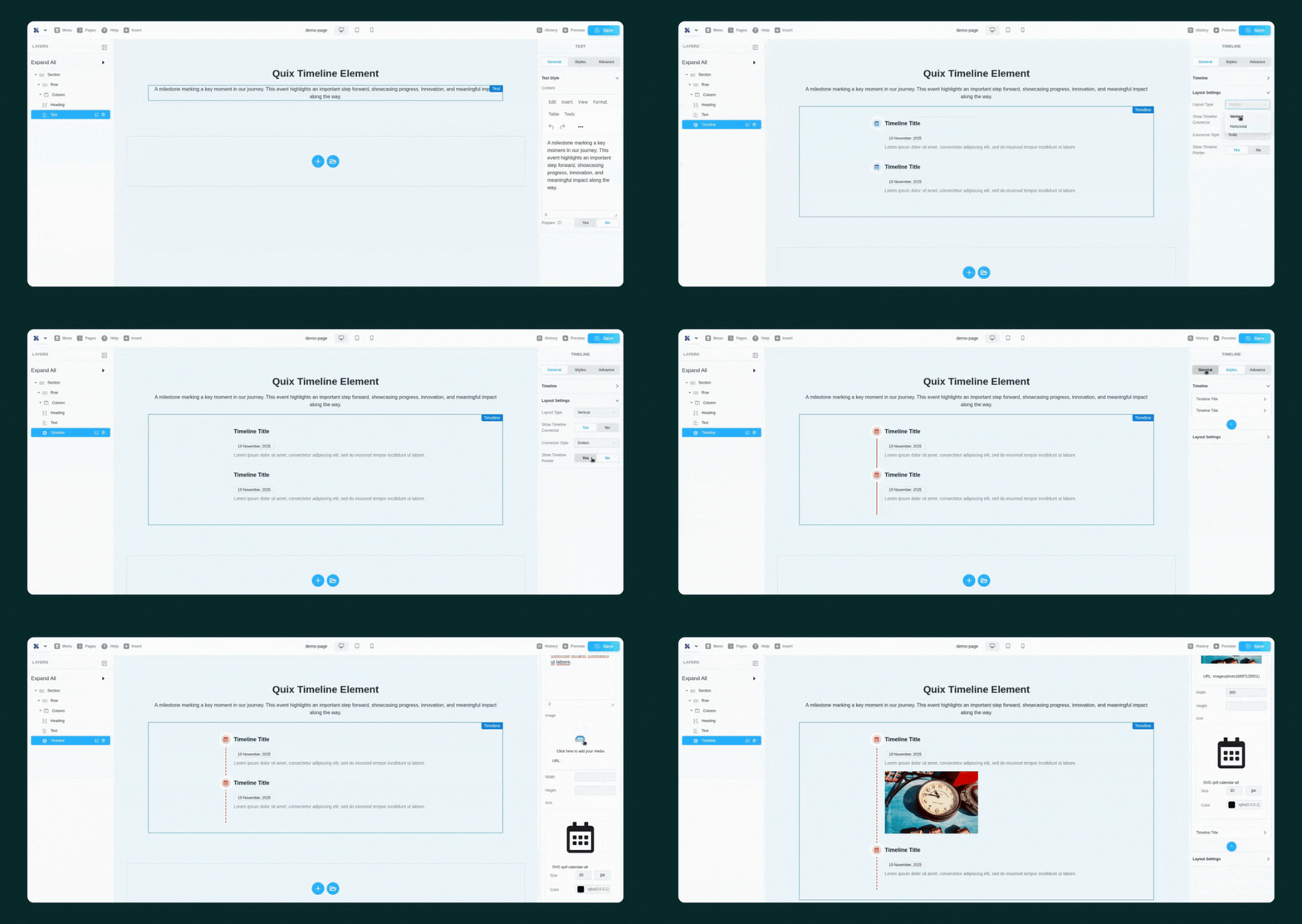
Open Quix. Find the Timeline element. Drag it where you want it. Done - you've got a timeline.
Now just click on any item and start filling things in. Title goes here, date goes there, write your description. Want to add an image? Click upload. Want to change the icon? Browse the library and pick one. It's all pretty straightforward.
Then just mess around with it. Try the vertical layout. Switch to horizontal. See what looks better. Turn the connectors off and see if you like that clean floating look. Turn them back on and try the dotted style. Change some colors.
The whole thing updates as you're working, so you see your changes instantly. No preview button, no waiting. Just real-time editing like it should be.
The Small Stuff We Sweated Over
You know what's annoying? When you add content to something, and suddenly the spacing looks weird. Or when you view it on your phone, and everything breaks.
We spent weeks fixing stuff like that. The spacing adjusts automatically based on your content. Images resize properly on every screen size. Icons stay sharp whether you're viewing on a 4K monitor or an old phone.
And if you do want to dive into the styling details, everything's there. Fonts, colors, spacing, alignment, borders - whatever you need. But the defaults work well enough that most people probably won't need to touch any of that.
What It Looks Like Live
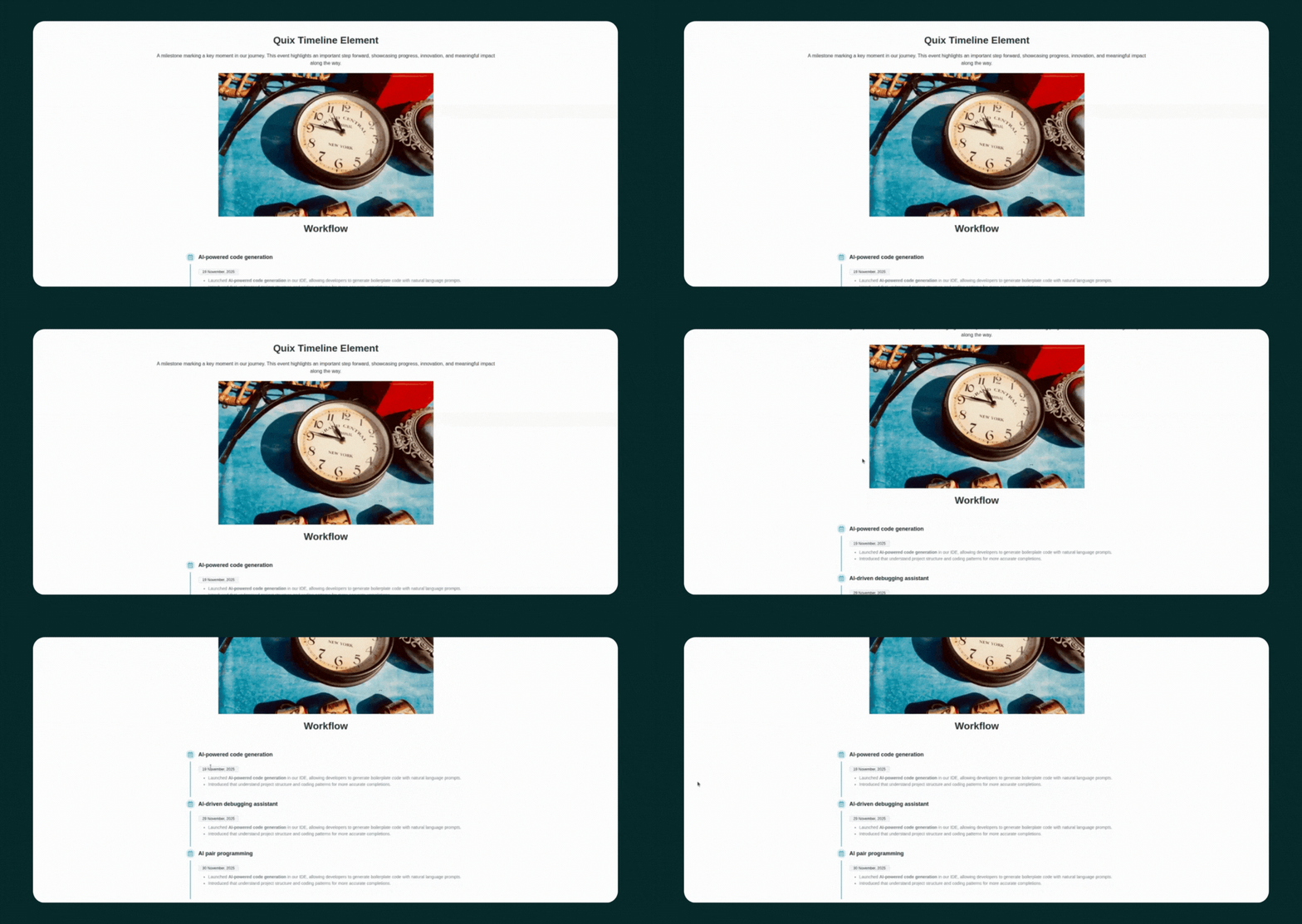
Once you hit publish, your visitors see exactly what you designed. The timeline flows naturally down (or across) the page. Images load cleanly. Your custom icons add personality without being distracting.
The whole thing just works. People can follow your story from start to finish without getting confused or losing interest.
Whether you're showcasing company history, project progress, or any other sequence, the Timeline element makes it clear and visually engaging.
Go Try It
So that's it. The Timeline element is live in Quix right now. You can start using it today.
We built this because you asked for it. And we tried to make it actually useful instead of just checking a feature box. Easy enough for beginners, powerful enough that designers won't feel limited.
Whatever story you need to tell, this tool can help you tell it better. Just drag, drop, fill in your content, and adjust it until it looks right to you.
Can't wait to see what you build with it.