We have been paying close attention to your feedback, and there was one request that was mentioned repeatedly. We are really thrilled to let you know that we can finally deliver it. Quix page builder has got Modal Popups!
Imagine them simply as minuscule highlights for the most important content of your life. Are you interested in showcasing a one-of-a-kind promotion, creating an excellent announcement, or stimulating visits by asking people to subscribe to your mailing list?
With this nice pop-up, getting noticed is easy, but you are not interfering with their work. One of the things that makes this even more awesome is the amount of control that you have.
You are the one to decide the exact time that your pop-up will be displayed, select the color or the pattern of it, and customize it so that it can match your brand perfectly. It’s your message, your way.
It is one of those features that simply makes your site look more vibrant, and we are so excited to find out the different ways you will use it. It is because of you that we have made it. This one is our gift to you.
What Can the Modal Popup Do?
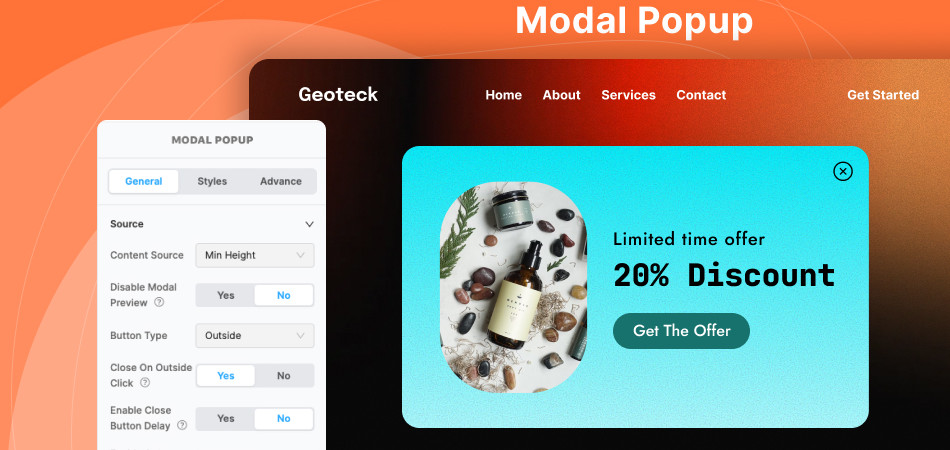
The Modal Popup lets you add lots of different content inside, like images, videos, or even maps. You have two style options to choose from.
One style splits the pop-up into two areas, one for your main media and one for text.
In the alternative design, the main feature of the page is the background image with the description placed on top of it, indicating that you have a stylish and new page.
Moreover, if you want to play a video in the pop-up for the video from YouTube, Vimeo or Dailymotion, then you just have to open the pop-up, and the video will be played there automatically, thus allowing the video to be played immediately without any further actions.
Moreover, a Google Map can be added to indicate a place. Is there a need for a straightforward layout? Hiding the text area and displaying only the media might be the answer.
How Does the Popup Appear?
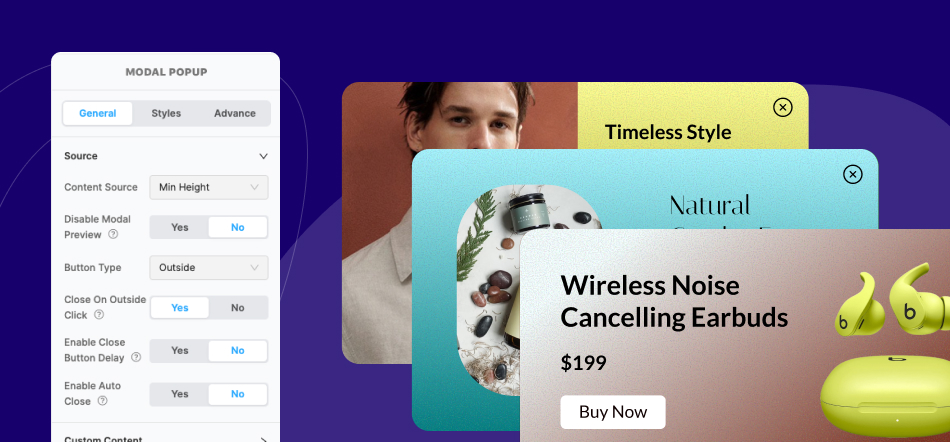
It is totally up to you to determine the manner in which the pop-up is accessed. By clicking either a button or an image on your page, a new window can be started.
In addition, it can be just there for a few seconds waiting for a user to scroll down or just before leaving the page (a smart trick to let visitors stay for a little longer).
It is even possible to have the pop-up anywhere on the screen, in the middle, or at a corner or side, whichever gives the nicest look to your site.
For your visitors, closing the pop-up is a simple task. In addition, there is a close button inside and also alternatives for closing via clicking outside the pop-up or pressing the Escape key.
Moreover, you may also have the pop-up displayed for a certain period, and then it closes automatically with a short notification telling users that it will be closed.
Styling Made Simple
The amount of control over the appearance of your pop-up will undoubtedly amaze you. Changing the background color, placing borders, resizing, and even adjusting the spacing to get the perfect one are among the things you can do.
Formatting the text is just as simple, so you can make your message stand out or be a plain one.
Moreover, you have the option to create the button or the image that will be the pop-up. Consequently, you can be compatible with the style of your website, whether you want a striking feature or a subdued one that blends.
Not a single aspect is beyond your control. You are the one who decides how the pop-up will look and at what time through the colors, fonts, and layout.
In this manner, it not only displays the data, but it also becomes an integral part of your website and acts as a bridge between you and the visitors conveniently and cordially.
How to Add a Modal Popup
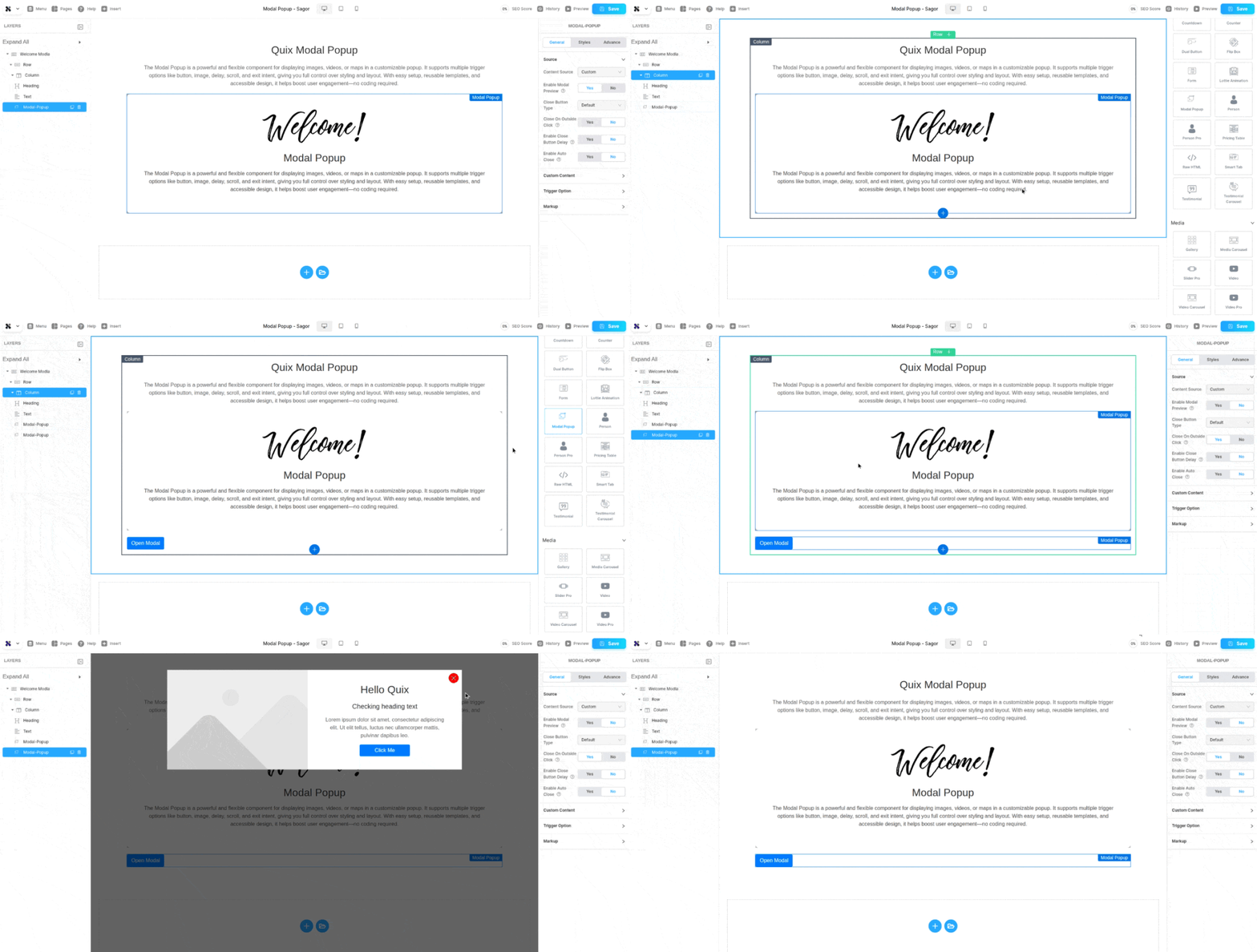
Getting started is super easy. Just open the Quix page builder and find the Modal Popup element. Drag it onto your page.
Bear in mind that in this section, you are actually designing and personalizing the pop-up, not just its location.
Content for your pop-up can be from a variety of different places.
You can build everything right inside the element, or load an entire saved Quix template to reuse designs you love.
If you are concentrating on other aspects of your page, a useful feature is that you can disable the preview of the pop-up during the editing process.
See It in Action
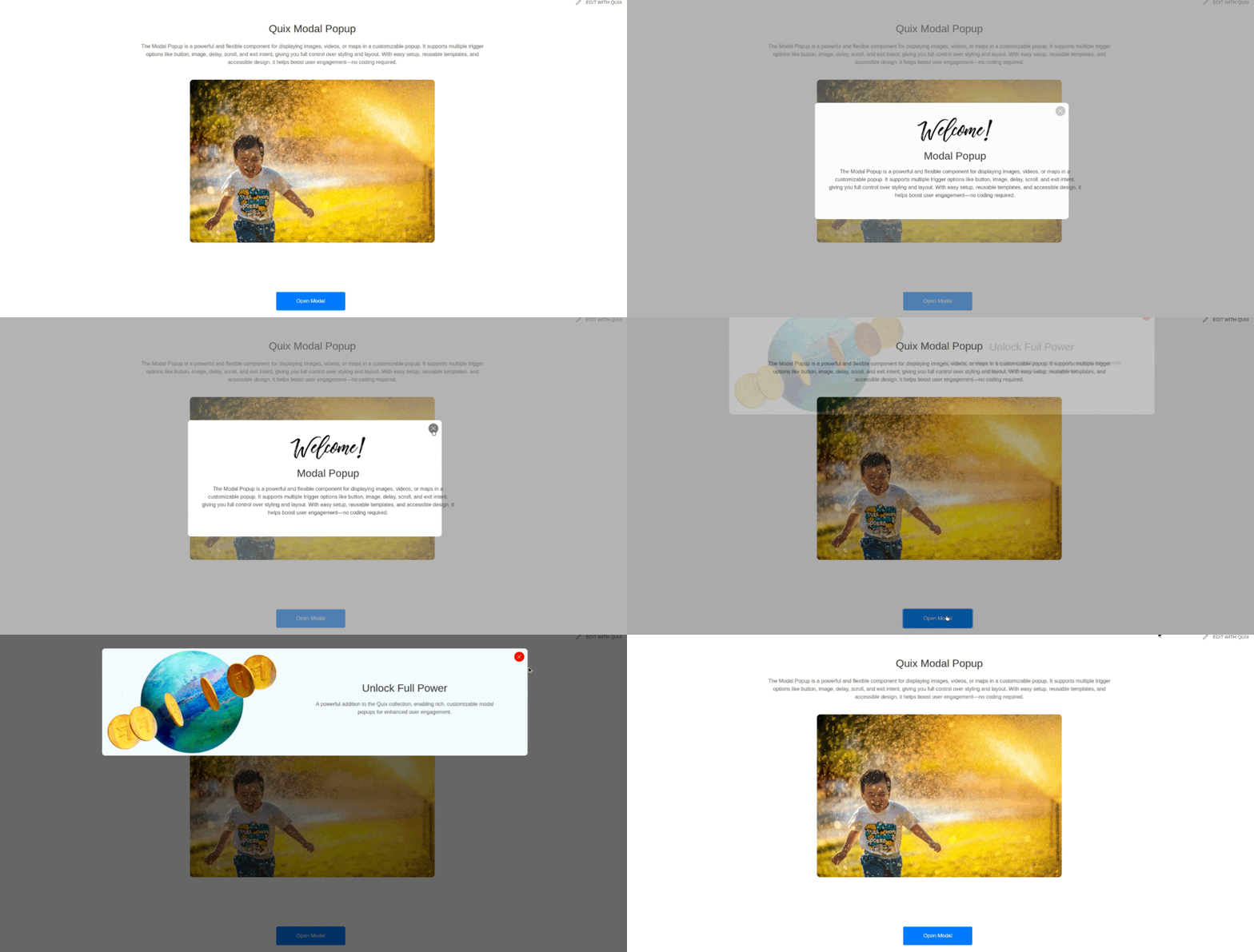
After a pop-up has been organized in a proper way, it will show when your visitors click your button or image or be triggered by your chosen method, exactly what you have planned.
The pop-up is displayed as a user-friendly extension of the page, thus not changing the location of the visitors but highlighting the message.
Very shortly, we will provide the visuals to demonstrate the process.
Ready to Try the Modal Popup?
The Modal Popup element allows users to effortlessly create visually attractive, timely pop-ups that are an exact match of their brand.
User-friendly drag and drop construction is the only requirement, and you also have the complete range of style choices at your disposal.
Open Quix page builder today and start creating pop-ups that help you connect with your visitors better.
Give it a try, it’s a game-changer for making your website more engaging!